> ## Documentation Index
> Fetch the complete documentation index at: https://docs.tokensmind.ai/llms.txt
> Use this file to discover all available pages before exploring further.
# Cursor
***
## Use a third-party API in Cursor (OpenAI / Anthropic)
Cursor lets you bring your own API key so you can spend your own quota (e.g. DeepSeek or a relay) instead of Cursor subscription limits.
***
## Step 1: Enable API mode
1. Open **Cursor**.
2. Open settings:
* Click the **gear (Cursor Settings)** in the upper right.
* Or press `Ctrl + Shift + J` (Windows/Linux) / `Cmd + Shift + J` (macOS).
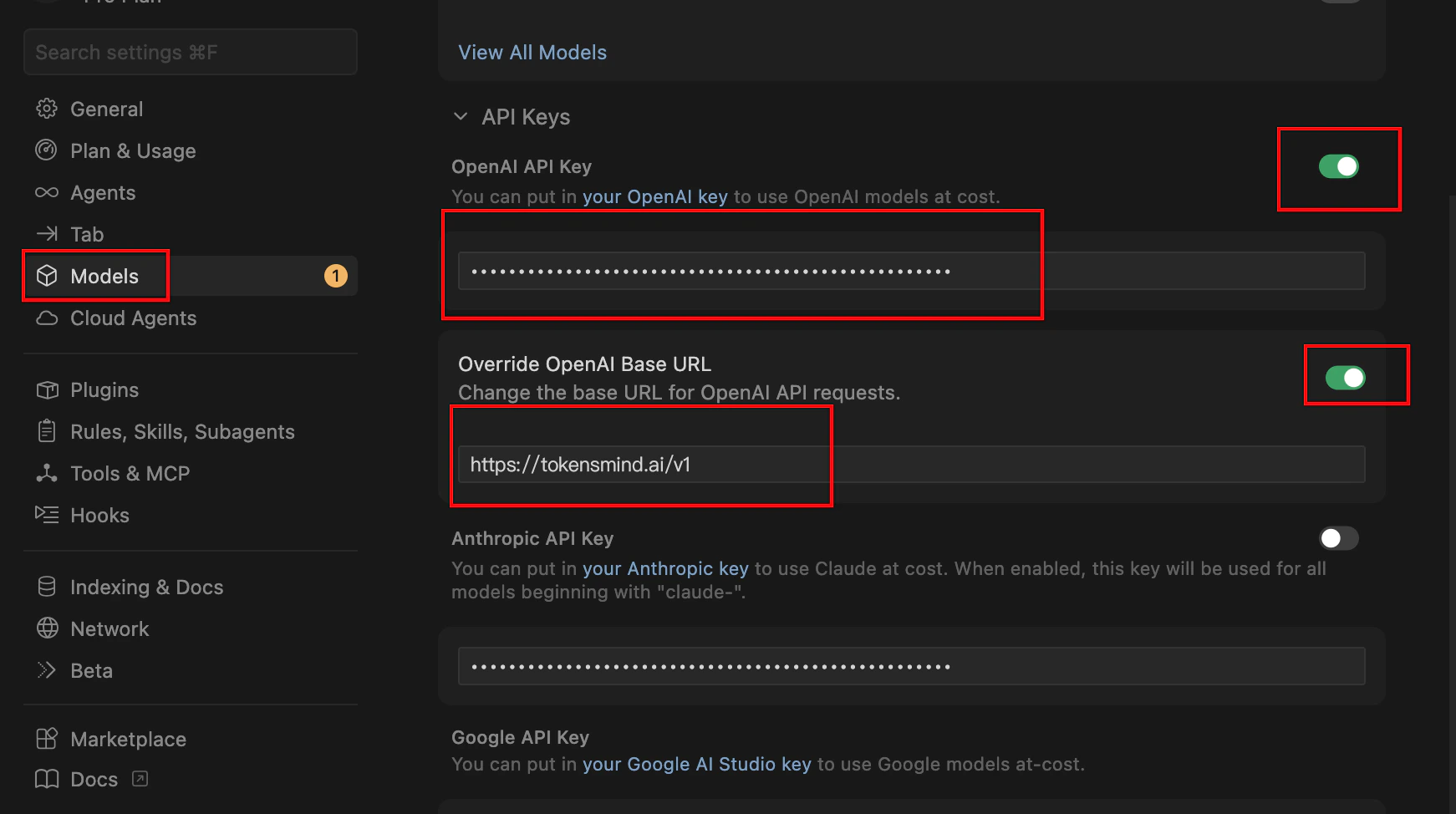
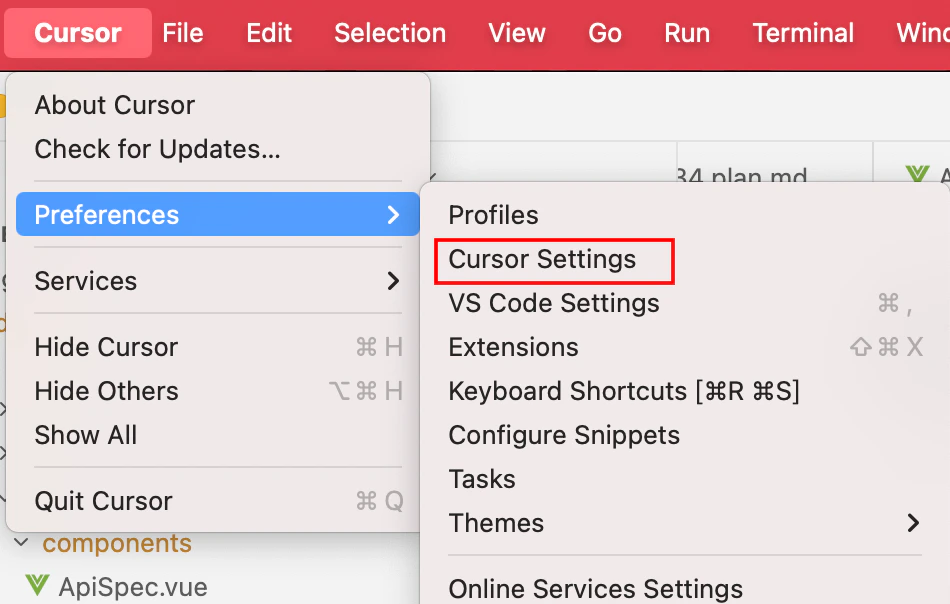 3. In the sidebar or window, open **General** or **Models**.
4. Enable the OpenAI API key field and paste your token.
5. Enable **Override OpenAI Base URL** and set `https://tokensmind.ai/v1`
3. In the sidebar or window, open **General** or **Models**.
4. Enable the OpenAI API key field and paste your token.
5. Enable **Override OpenAI Base URL** and set `https://tokensmind.ai/v1`
 ## Step 2: Manage models
To make sure Cursor calls the right models, enable or add them in settings.\
Names **must not** collide with Cursor’s built-ins—pick models from the **Cursor** category in the model hub.
1. Find the **Models** section in the same settings page.
## Step 2: Manage models
To make sure Cursor calls the right models, enable or add them in settings.\
Names **must not** collide with Cursor’s built-ins—pick models from the **Cursor** category in the model hub.
1. Find the **Models** section in the same settings page.
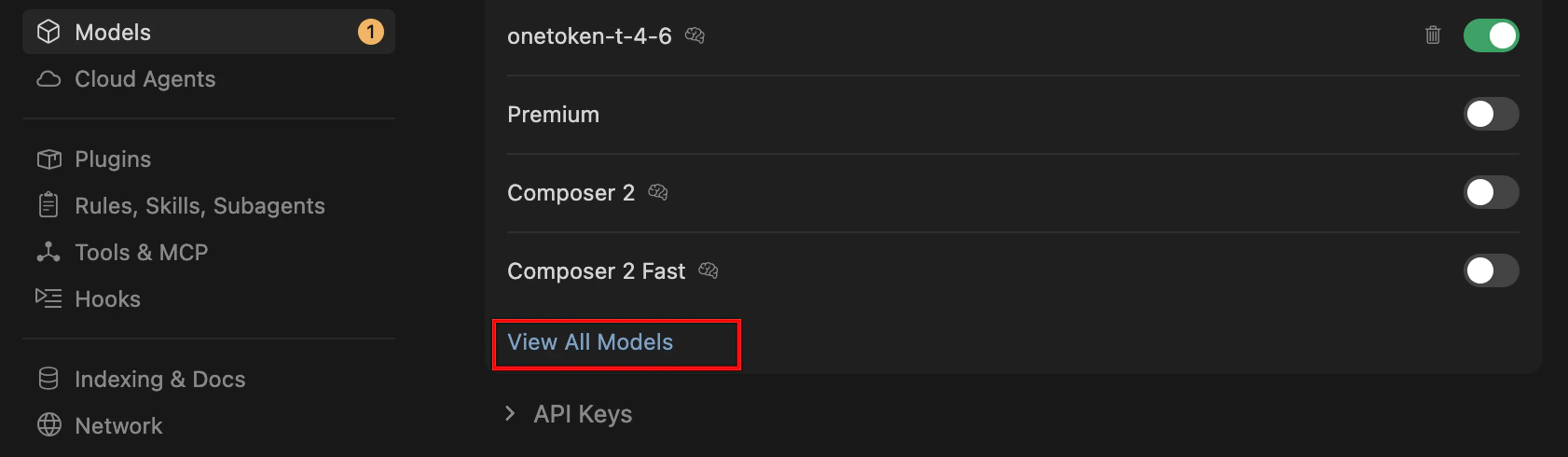 2. **Toggle on** the models you need (e.g. `gpt-4o`, `claude-3-5-sonnet`).
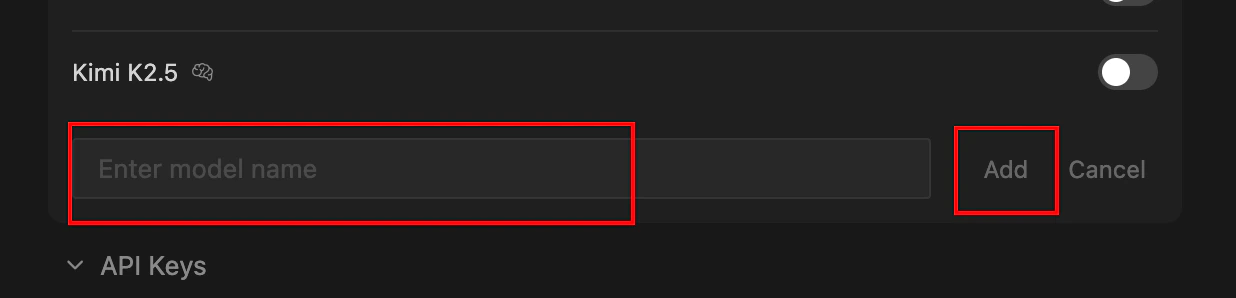
3. **Add custom models**: e.g. for DeepSeek, click **+ Add Model**.
2. **Toggle on** the models you need (e.g. `gpt-4o`, `claude-3-5-sonnet`).
3. **Add custom models**: e.g. for DeepSeek, click **+ Add Model**.
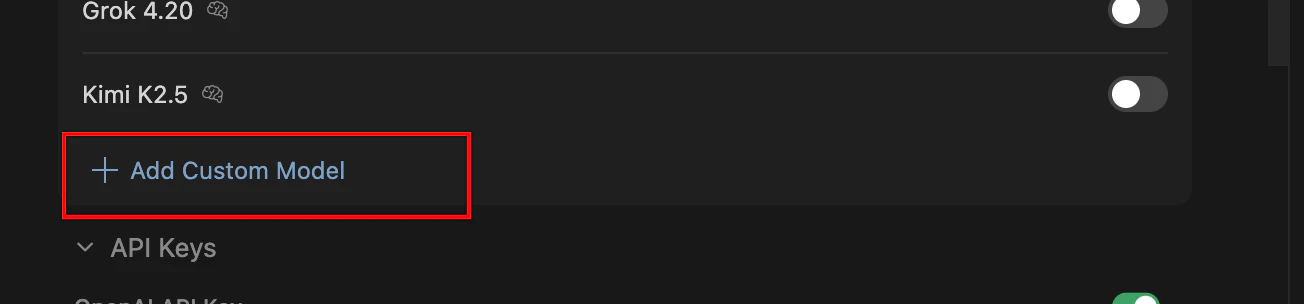 4. Enter the exact model id (e.g. `deepseek-chat` or `deepseek-reasoner`).
 ***
## Step 3: Use it in the editor
1. Back in the editor.
2. `Ctrl + L` (Chat) or `Ctrl + K` (Edit).
3. In the **model dropdown** at the bottom of the input, choose your third-party model.
4. **Note**: With your own key, some Cursor-only optimizations may differ; quality depends on the API you selected.
***
## Troubleshooting
| Symptom | Fix |
| :------------------ | :------------------------------------------------------------------------- |
| **Verify failed** | Base URL should end at `/v1`, not `/chat/completions`. |
| **No reply** | Check third-party balance / quota. |
| **Built-in models** | With BYOK, Cursor usually bills your key first, not the subscription pool. |
***
***
## Step 3: Use it in the editor
1. Back in the editor.
2. `Ctrl + L` (Chat) or `Ctrl + K` (Edit).
3. In the **model dropdown** at the bottom of the input, choose your third-party model.
4. **Note**: With your own key, some Cursor-only optimizations may differ; quality depends on the API you selected.
***
## Troubleshooting
| Symptom | Fix |
| :------------------ | :------------------------------------------------------------------------- |
| **Verify failed** | Base URL should end at `/v1`, not `/chat/completions`. |
| **No reply** | Check third-party balance / quota. |
| **Built-in models** | With BYOK, Cursor usually bills your key first, not the subscription pool. |
***