

Use a third-party API in Cursor (OpenAI / Anthropic)
Cursor lets you bring your own API key so you can spend your own quota (e.g. DeepSeek or a relay) instead of Cursor subscription limits.Step 1: Enable API mode
- Open Cursor.
- Open settings:
- Click the gear (Cursor Settings) in the upper right.
- Or press
Ctrl + Shift + J(Windows/Linux) /Cmd + Shift + J(macOS).
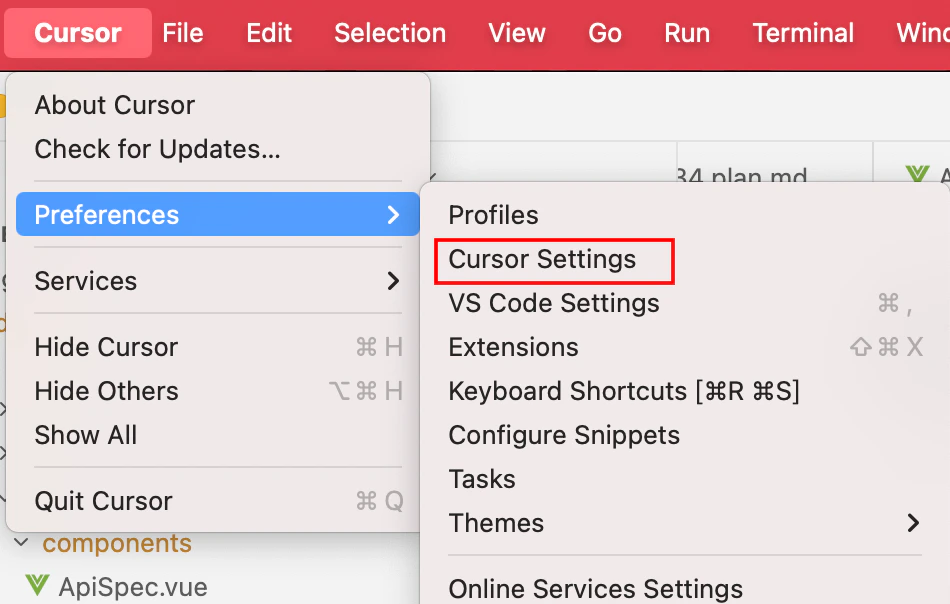
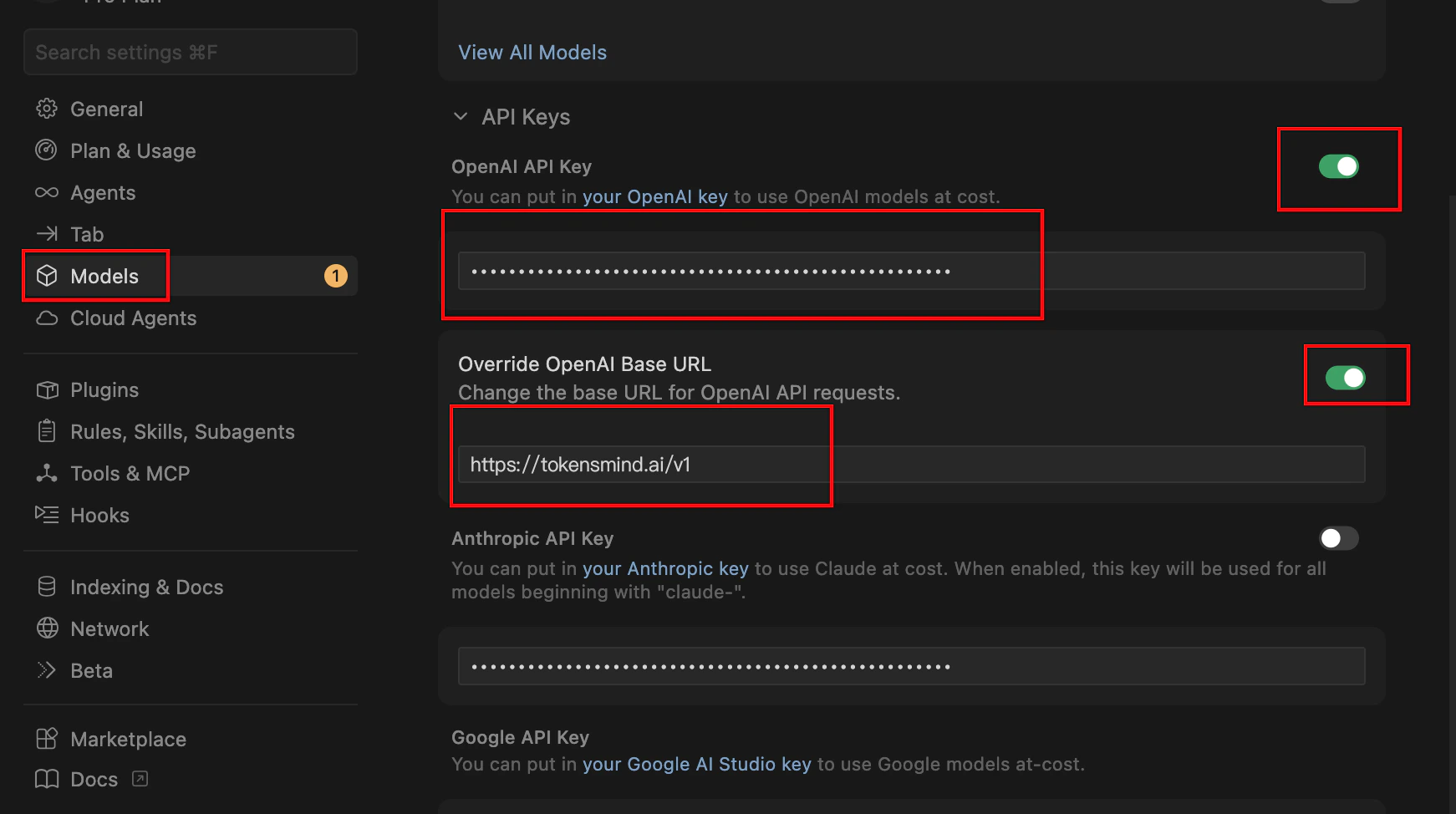
- In the sidebar or window, open General or Models.
- Enable the OpenAI API key field and paste your token.
- Enable Override OpenAI Base URL and set
https://tokensmind.ai/v1
Step 2: Manage models
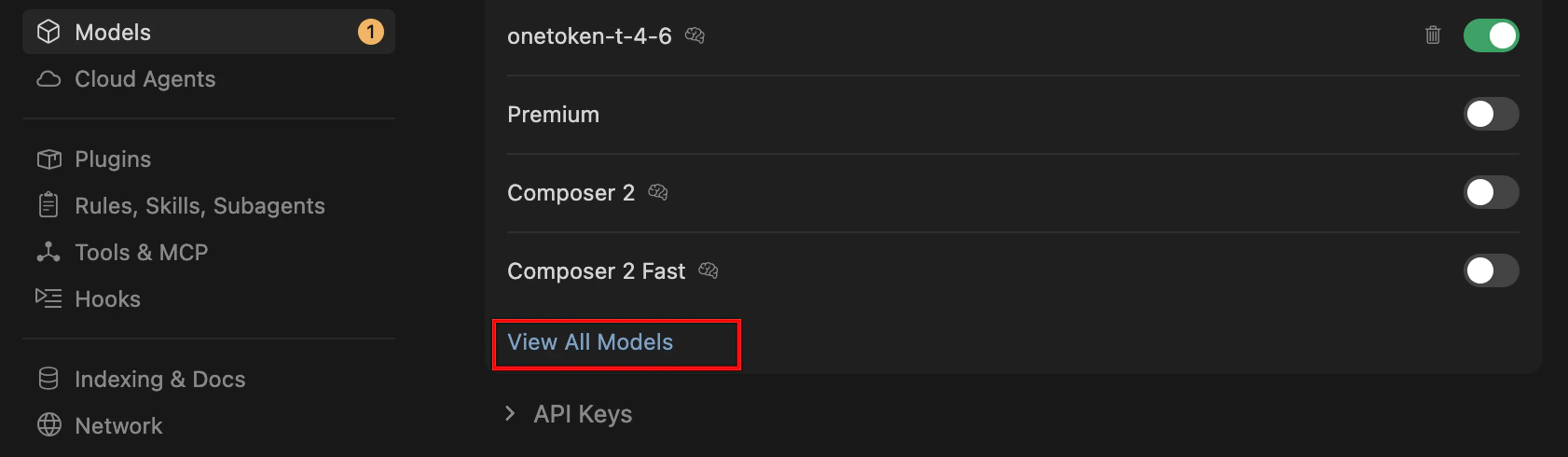
To make sure Cursor calls the right models, enable or add them in settings.Names must not collide with Cursor’s built-ins—pick models from the Cursor category in the model hub.
-
Find the Models section in the same settings page.
-
Toggle on the models you need (e.g.
gpt-4o,claude-3-5-sonnet). -
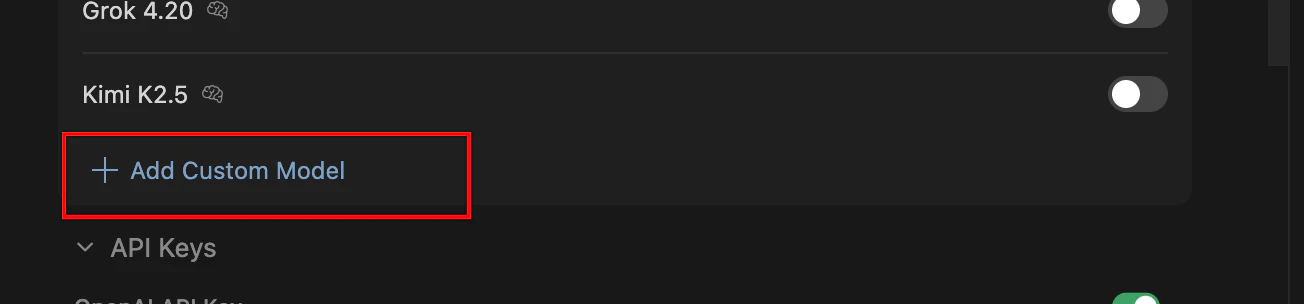
Add custom models: e.g. for DeepSeek, click + Add Model.
-
Enter the exact model id (e.g.
deepseek-chatordeepseek-reasoner).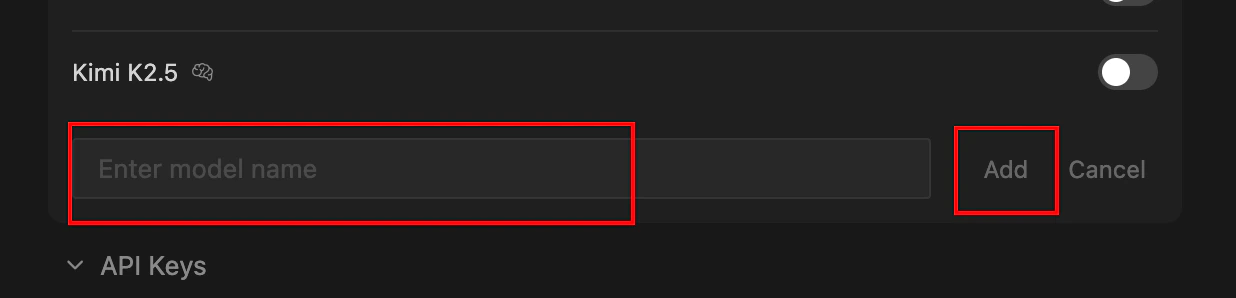
Step 3: Use it in the editor
- Back in the editor.
Ctrl + L(Chat) orCtrl + K(Edit).- In the model dropdown at the bottom of the input, choose your third-party model.
- Note: With your own key, some Cursor-only optimizations may differ; quality depends on the API you selected.